How to create a cross-browser drop-down menu with Dreamweaver in minutes
This is going to be short and the main purpose is to let you know Dreamweaver CS4 has a built-in functionality letting you create a good CSS-based drop-down menu in minutes. I’m not sure at what version Dreamweaver started to have this built-in drop-down generator. Perhaps it was from CS3.
The dropdown is CSS/text-based, very easy to customize and maintain and works well with different browsers even when you have a big Flash or image banner right underneath.
If you want to create a drop-down menu from a pull-down list, check out this post: Create a Pull-Down List/Drop-Down Menu
Use the Insert menu
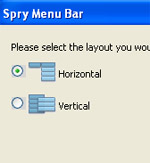
All you need to do is go to menu Insert > Spry > Spry Menu Bar. Dreamweaver/Spry will display a pop-up asking you whether you want a vertical or horizontal menu. After selecting, you just need to play with the Properties panel in Dreamweaver to specify the number of levels your menu is going to have as well as how many sub-item under each main item and so on. Dreamweaver will create a web file [.html, .php, .asp…] , a CSS file [.css] and a Javascript file [.js] and put these 3 files in a folder. If you’ve already managed your website(s) with Dreamweaver [with Site > Manage Sites…], these 3 files will be put inside a folder under one of your managed website.

@François:
With some understanding of Ajax, here’s my take: I think search engine robots will have no problem accessing pages linked from the menu. The reason is the menu – the one I show above – is hard-coded on the page, and not stored on an external file, so the robots will “see” everything in the source. If the menu were stored on an external file and called/loaded by Ajax/javascript, robots would have problem accessing the pages.
Hi,
I have read many times that Ajax menus do not allow search engine robots to go through them and access the pages that are depend on them. As Dreamweaver spry menus are based on the Ajax technology, I guess it is the same problem for the search engine robots : they won’t be able to go the Dreamweaver spry menus. Am I right ?
I’m making a website with a drop down menu, and I got it to work but there are so many links that it forms two lines when you open it in different browsers. Is there any way to set it to be a permanent width so it stays only on one line?
hi all,
this tutorials is very good,
i never forgot your turorials.
hi,
i have a website to learn arabic language
i need to make drop down menu, can anybody help?
http://www.studyarabic.eu
thanks
Thank you very much, I’ll have a look at that. I do have Dreamweaver as part of an Adobe package but I only use it to make a code (like a table to save the bother of s and s ) to paste that into my page. Best wishes
I’m making an e-Form and I’m looking to have a drop down menu, that when each item is chosen, it will display different option to fill in. What is this called in DW CS4 and anyone have something I can go by? Thanks
Thank you very much, i really need it.
In case anyone is interested I found a nicce CSS only mega-menu in an English publication
http://www.myfavouritemagazines.co.uk/web-design-essentials/?force_sid=88d3f6814b9dd3a2bb793a1bdcd1884c&
and have adapted it
http://hampsteadparishchurch.org.uk/data/test_header.php
It is not in full use yet
Thank you very much, I’ll have a look at that.
I do have Dreamweaver as part of an Adobe package but I only use it to make a code (like a table to save the bother of s and s ) to paste that into my page.
Best wishes
Hi Margaret,
The menu you’re looking for is called Mega Menu. Although it’s possible to develop it with Dreamweaver, the process is not as easy as doing a 1 or 2 layer dropdown with Spry. Plus, after you develop it, your menu may not work well cross browser/platform. In this case, I’d suggest you google “mega menu” and choose one that’s best suited. The one I saw using the most is based on jQuery: http://www.javascriptkit.com/script/script2/jkmegamenu.shtml
Hope this helps and good luck!
The serif site http://www.serif.com has multiple columns for its dropdown menus. Could Dreamweaver do that? I would love to be able to code that for our website – it’s so smart
Best wishes
Margaret
Thank you very much,
i really need it.
[…] http://visibleranking.com/2009/05/create-drop-down-menu-with-dreamweaver.php […]
Thanks alot.
Hi,
I’ve added a spry horizontal drop down menu to a button on my top navigation bar. I have an image immediately underneath. How do I get the menu to go over the image? right now it’s pushing the button upwards so not inline with the other buttons. Any help will be appreciated. E-mail me on nasifab@hotmail.com.
thx
hi thanks alot,
but one problem in drop down horizantal menu, i need it should come drop up when over the button….because I given menu bar at the bottom of the web page….
any one know how to customize the code..
plz send me mail to this id : pavie003@gmail.com
thanks..
Very helpful information without trying to sell it to me.
Thanks a lot I had the information needed to to do the navigation menu in seconds!!!!!!!!!!!!!!!
To be honest all the other websites did not give me the information I needed.
Everyone else has these huge tutorials. This guy lets you know its built in and super easy !
Thanks alot
Thanks for the update. I was not aware that Spry is part of the CS4 package.
Dreamweaver/Spry is pretty good. I think it was available since CS3. Work pretty well and easy to skin/change colors of the navigation with CSS.