Create favicon — address bar icon, or bookmark icon for your blog, and website. Updated for Photoshop CS4
This is to show you how to create and add your own favicon to your website or blog – including your Blogger/Blogspot, WordPress… The process is really simple and nearly the same for a website or a blog. First you need to create a favicon with Photoshop or with other tools; then upload the favicon to your website.
What’s a favicon?
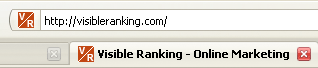
Favicon [Favorites icon], also known as a website icon, shortcut icon, URL icon, or bookmark icon is an icon associated with a website/web page usually displayed in the browser address bar right in front of the url or in the Favorites menu of Internet Explorer or the Bookmarks menu of non-IE browsers. You can also see it on the tab of your later version browsers. Traditionally, favicon is an image with the extension .ico; now, modern browsers support favicon as a .png, .gif, or .jpg file. However, to make your favicon consistently work in most browsers, it’s recommended to create a .ico favicon. Favicon should be sized at 16×16 pixel. Here’s how the favicon of this website looks.
Benefits of having a favicon on the website
Designing and adding a meaningful favicon to your website is beneficial in many ways. Your favicon can be your logo or a simplified version of your logo, and of course it’ll bring you/your organization a stronger brand/identity reinforcement. A favicon can also help differentiate your site from others on the long list bookmarks your viewers have on their browsers. It gives your website a more distinctive and better identity and character on the web.
On the left is how Visible Ranking favicon looks on the list of bookmarks.
STEP 1 [of 2]: Create your own favicon
You don’t have to be a designer to do this. If you have your favicon already, you can ignore this step. In fact, you can easily find a usable favicon online. Here’s an example of list of favicons found on Flickr. If you’ve found something like this, you only need to cut out the one you like; remember the icon size is 16×16 pixel. Then use ONE of the following options to save your favicon as an .ico file e.g. favicon.ico, and you’re done.
Tool 1 – Photoshop and ICO plug-in:
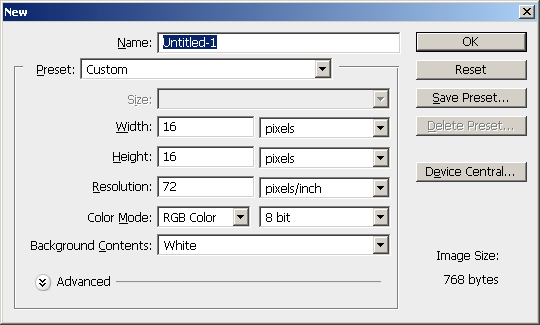
Photoshop including CS4 version has never supported .ico file, so if you have Photoshop, you’ll need to download a Photoshop plug-in to be able to save your file as .ICO. The plug-in website was telegraphics.com; the site was not functioning properly in the past, so here’s the download link for ICO Plug-in for Windows just in case. The plug-in is free and goes with an instruction on how to use it from the plug-in website. Basically, you just need to download the plug-in zip file, unzip it, and move the plug-in to your Photoshop Plug-ins folder such as “C:\Program Files\Adobe\Adobe Photoshop CS4\Plug-ins” or “D:\Adobe\Adobe Photoshop CS4\Plug-ins”. With a plug-in already installed, you need to create a new file of 16 x 16px in Photoshop; draw your icon; then Save it as favicon.ico.
Note: Up to the time of writing this article, your Photoshop file must have the following configuration in order to be able to save as .ico file. Thus, if you happen to select CMYK color mode, you can’t save your file as .ico.; if your file is 16bit, you can’t save it as .ico either…
Tool 2 – Use free online favicon generator
There are lots of websites that can help you create a favicon with an image. You only need to upload your image and the favicon will be generated with just a click. You can go to http://tools.dynamicdrive.com/favicon/ or google with the keyword favicon generator. With this option, you’ll need to use/create a .jpg or .gif image – since the favicon will be 16×16, to have the best result, your image should be square, or even sized exactly 16×16; then upload the image to the website; generate the favicon; and download the favicon.ico file for use.
STEP 2 [of 2]: Add the favicon to your site
First, you need to upload your favicon file favicon.ico to the server just like uploading other images on your website. If you store it inside the folder named images in the root directory, then in the HEAD / META section of your HTML file, add this line of code:
You need to add it to all html pages that you want the icon to display. Just clear the cache and refresh your page a couple of times and the icon will be there! Congrats!!!!
If the icon is not showing, you may just need to mouse over the generic icon in front of your url in the address bar [which will be replaced by your favicon] and drag it out of the bar. This is supposed to refresh the favicon and replace the browser generic favicon with your new favicon. More likely, your favicon will display after this mouse action.
Add the favicon to your Blogger/Blogspot blog
Someone have asked below if it’s ok to add your own favicon.ico to your Blogger/Blogspot blog to replace the generic Blogger icon. The answer is “Yes” and here is how.
Without a custom made favicon, your Blogspot blog favicon is going to look like the image above. All you need to do is, of course to make your own favicon. Then:
1. Upload the image to your Blogger/Flickr/… or whatever server you’re using. After uploading, you’ll have a url of the image.
2. In your Blogger go to the Layout tab ⇒ Edit HTML ⇒ Copy the line of code below and paste it to the html code ABOVE the <HEAD> tag.
<link href=’http:// this should be the url linking to your icon’ rel=’shortcut icon’/>
Without having a Mac, I’d suggest you create a jpg of 16×16 pixel and use the online favicon generator [Tool 2 in the post above] to see how that works out.
Best!
I’m still confused. The telegraphics site makes no mention of CS4 and I have a Mac, all the support seems to center around a PC running windows. How can someone Using a MAC running Photosop CS4 greate a favicon?
thanks,
-Wha?




[…] favicon with Photoshop ICO visibleranking.com […]
Great article Thank you so much!
thanks, very useful
Without having a Mac, I’d suggest you create a jpg of 16×16 pixel and use the online favicon generator [Tool 2 in the post above] to see how that works out.
Best!
I’m still confused. The telegraphics site makes no mention of CS4 and I have a Mac, all the support seems to center around a PC running windows. How can someone Using a MAC running Photosop CS4 greate a favicon?
thanks,
-Wha?
It depends on how your site is currently set up.
No matter what, these posts from WordPress will probably help:
http://wordpress.org/support/topic/225541
http://codex.wordpress.org/Function_Reference/get_rss
Hello to all 🙂 I can’t understand how to add your site in my rss reader. Help me, please
All the download links for the Photoshop plugin file seem to be down, so I uploaded it here for all to download.
DOWNLOAD PHOTOSHOP FAVICON PLUGIN HERE
Yeah the plugin works great! Thanks for sharing!
thank for share, i downlod icons at http://freeicon7.net to create favicon
Thanks for the note about the plug-in for Photoshop. Sad that even CS4 doesn’t support .ico.
Added a favicon my blogspot. Worked great! Thanks!!